Mero Calendar
com.calimero.mero-calendarA collaborative, peer-to-peer calendar on the Calimero network. Shared team calendars and more.
v0.1.0The desktop app for the Calimero Network. Connect to your node, install apps from the Application Registry and manage your namespaces — on macOS, Windows, Linux and Chromebook.
Checking for latest release…
01What it does
Your node
Calimero Desktop ships with the node built in. The first launch creates a node on your computer and the admin login you will sign in with — no terminal, nothing else to install.
Application Registry
The Marketplace lists the applications in the registries you have configured. Search, filter by category or by what is installed, read an app’s page with its screenshots and links, pick a version and install it onto your node.
Namespaces
Namespaces are grouped by the app they belong to. Create one, see its contexts and who is in it, invite someone with a link, or join a namespace from an invite you were sent.
Account
The Account page lists your devices and what each may act for. Add a device by carrying a pairing invite to it, and choose whether it gets everything or only the apps you pick. Revoke one when you stop using it.
Nodes
Create more nodes, each on its own ports and node version, then start, stop and restart them from the Nodes page. The log viewer follows a node live, with a filter, copy and download.
Calimero Cloud
Turn on Cloud in Settings and sign in to link Calimero Cloud: your plan shows in the app, and your namespaces can stay online while your computer sleeps.
Appearance
The whole app follows one design in two themes. Switch between them in Settings.
02And more
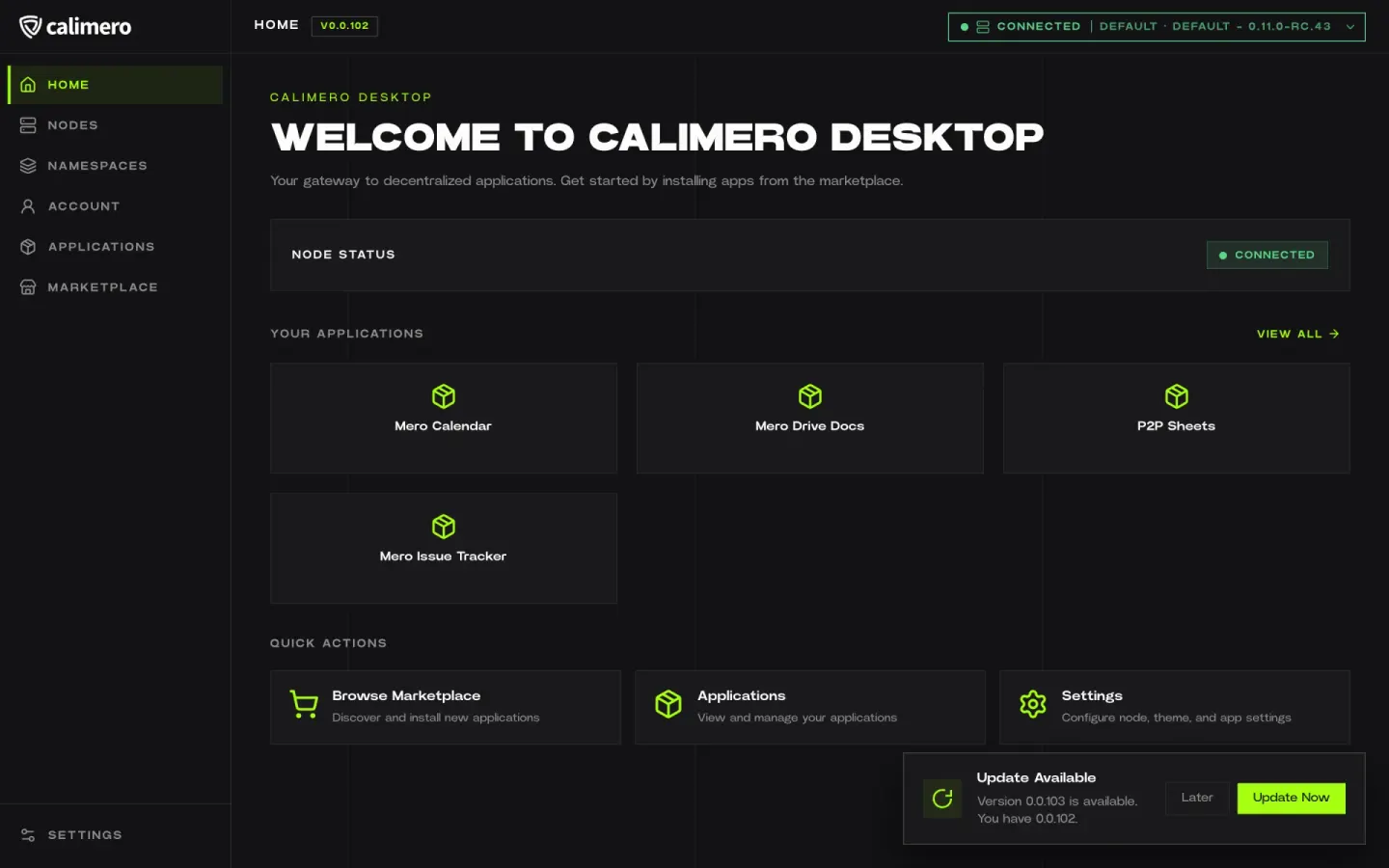
The app checks for new versions and offers to update now or later.
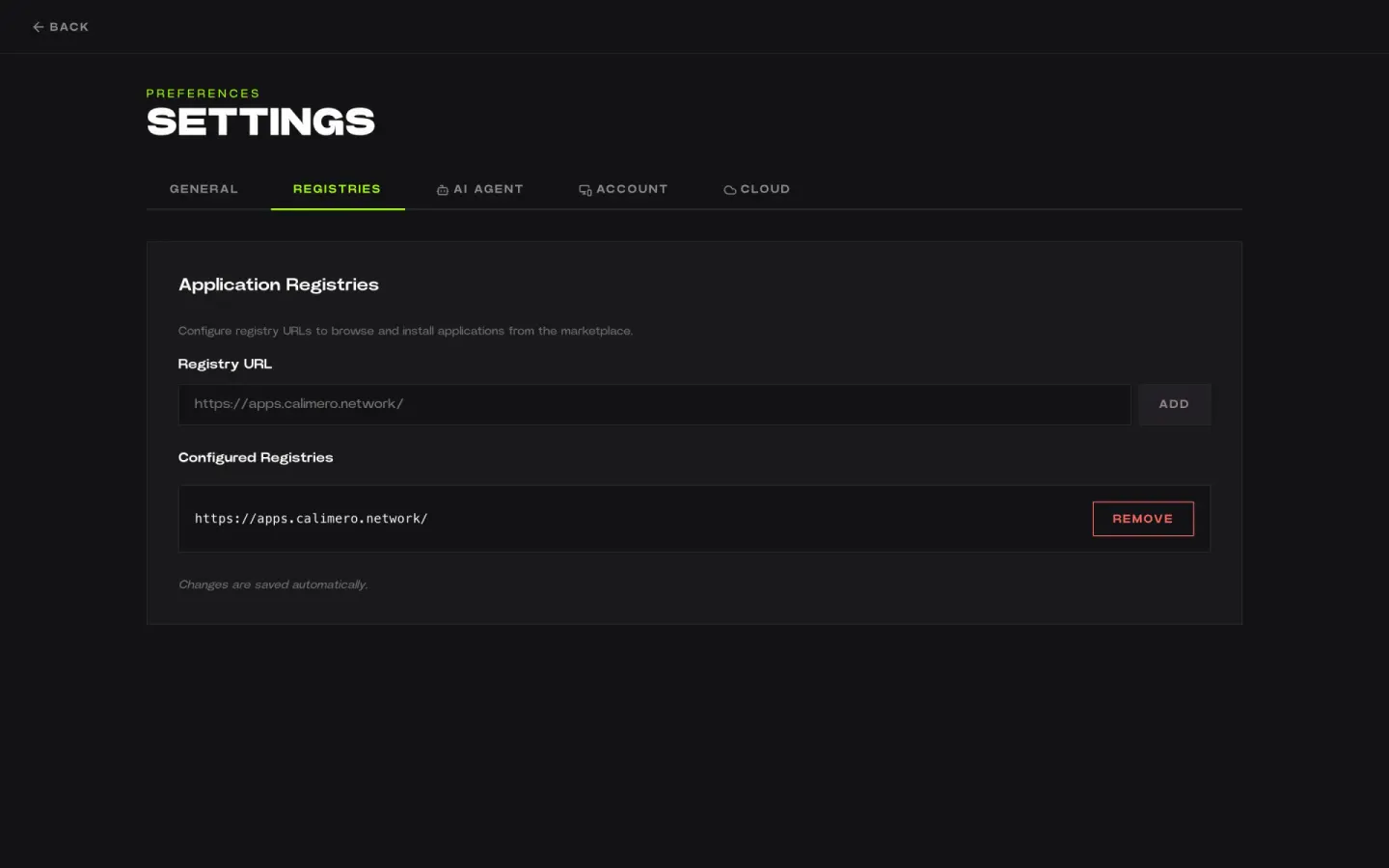
Add or remove the registry URLs the Marketplace reads from.
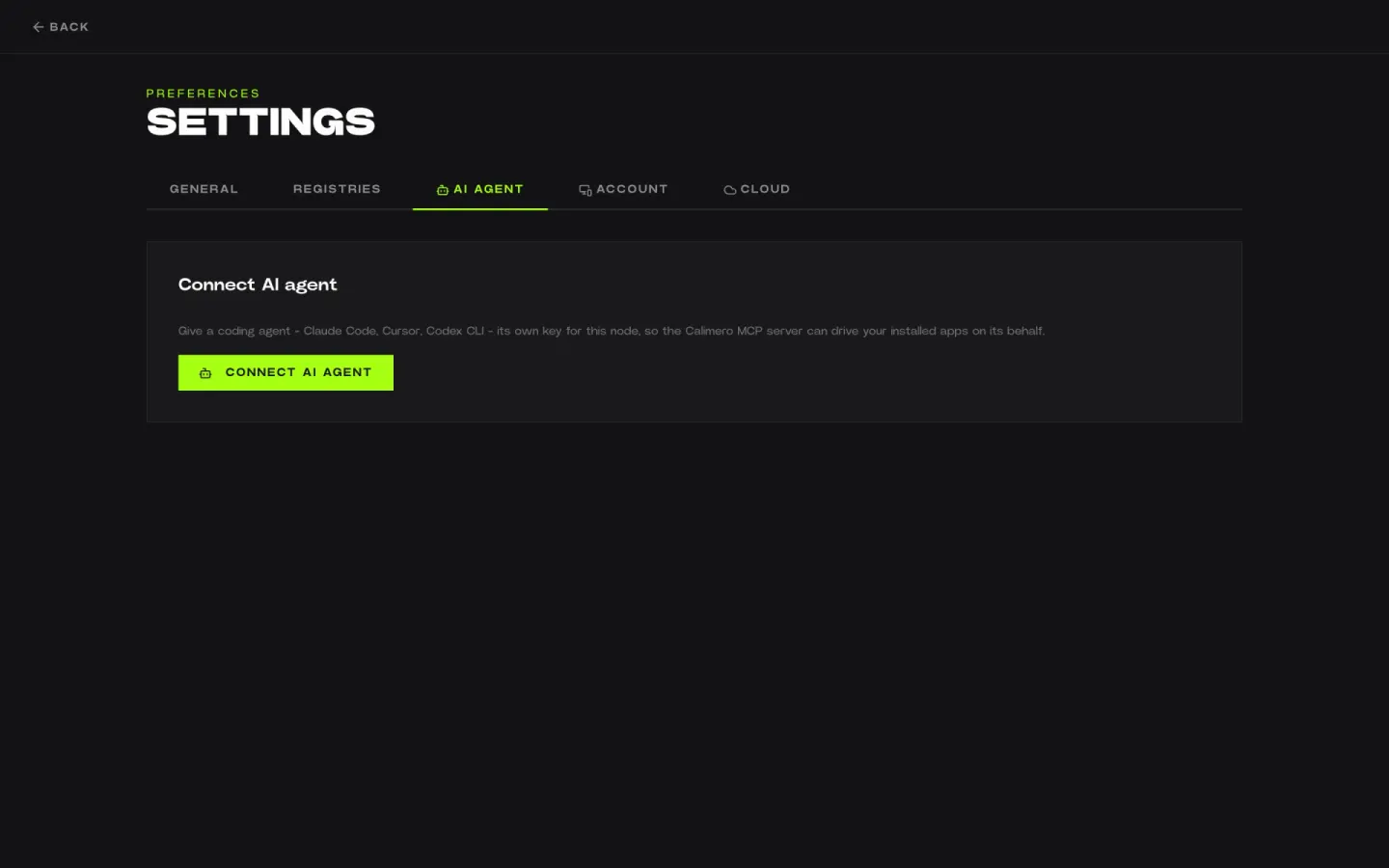
Give a coding agent — Claude Code, Cursor, Codex CLI — its own key for your node, so the Calimero MCP server can drive your installed apps.
03Get started
1
Get Calimero Desktop. It runs your node.
Download →2
Install an app. It creates your namespace: the app’s own private space for its data, people and rules. You’re the admin.
Explore applications →3
Turn on always-on. Sealed cloud machines keep it online while you sleep.
Go always-on →4
Send one link. People join from Desktop or the browser — and with always-on, even while you’re offline.
How invites work →A namespace is an app’s own private space — its data, its people and its rules.
04Always on
Calimero Cloud
We run sealed, always-on machines for your namespaces — so your team stays in sync and people can join from any browser. Even we can’t read what’s inside them.
05Requirements